Use the Stop AI with Keywords template when a fan's request should be handled by a teammate. The automation can pause AI replies for the matched fan, notify linked teammates on Telegram, and add the fan to an existing list.
This combination of the Fan sends a message trigger and Stop AI action requires Elite.
The Fan sends a message trigger is available for OnlyFans and Fanvue, and unavailable for MYM.
You need automation management access to create or change the automation.
In the template browser, first select Keywords to narrow the list, then choose Stop AI with Keywords.
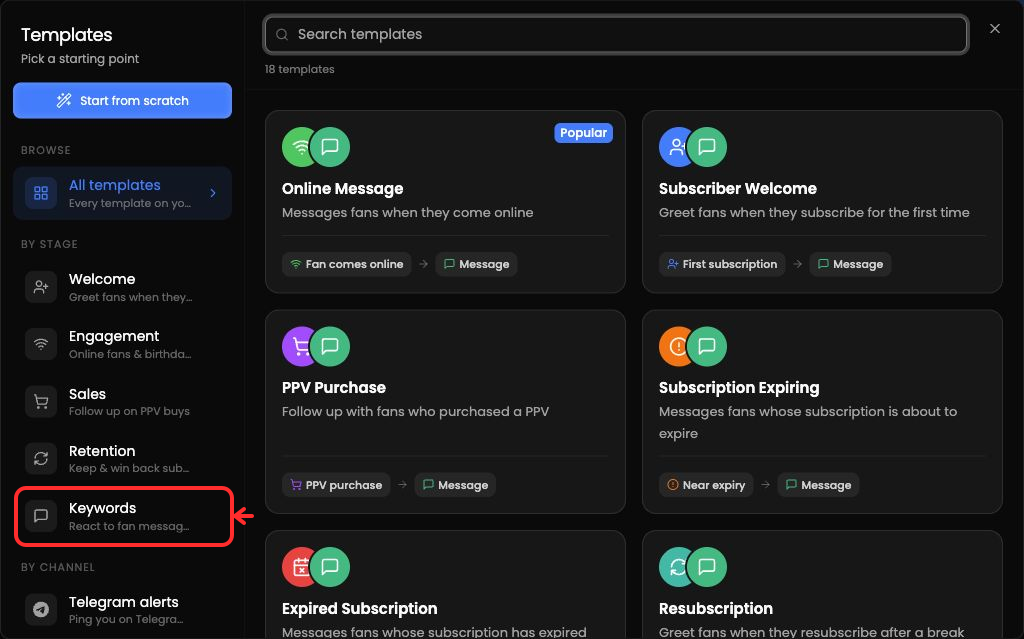
Open CRM → Automations.
Select Create Automation → From template, then choose Stop AI with Keywords.
In the Fan sends a message trigger, add the request terms you want to detect. Choose Contains or Exact match for the trigger.
Keep Stop AI enabled so the matched fan's AI replies are paused.
Optional: add Notify and select teammates with linked Telegram accounts.
Optional: add Add to List and select an existing fan list.
Review the trigger and actions, then complete the creation flow.
Stop AI pauses replies for that fan. A teammate can re-enable AI later from the fan sidebar.
If several enabled keyword automations match the same message, one matching automation runs. Avoid overlapping request terms when you need a specific workflow.
No Telegram recipients: ask the teammate to connect Telegram under Settings → Profile, then return to the automation.
No list is available: create the fan list before adding the Add to List action.
Creation or editing is unavailable: ask a workspace owner to review your automation management access.