Use a message sequence to send one or more written-message steps after an automation trigger.
Automations are supported for OnlyFans and Fanvue creators. MYM does not support automation triggers.
You need automation-management access to create or edit a sequence. Automation-view access lets you inspect an automation without changing it.
Available triggers and actions depend on your plan. The welcome trigger is available on Free; Fan comes online and Stop AI with keywords require Elite.
Open CRM → Automations, select a creator, and create or edit an automation.
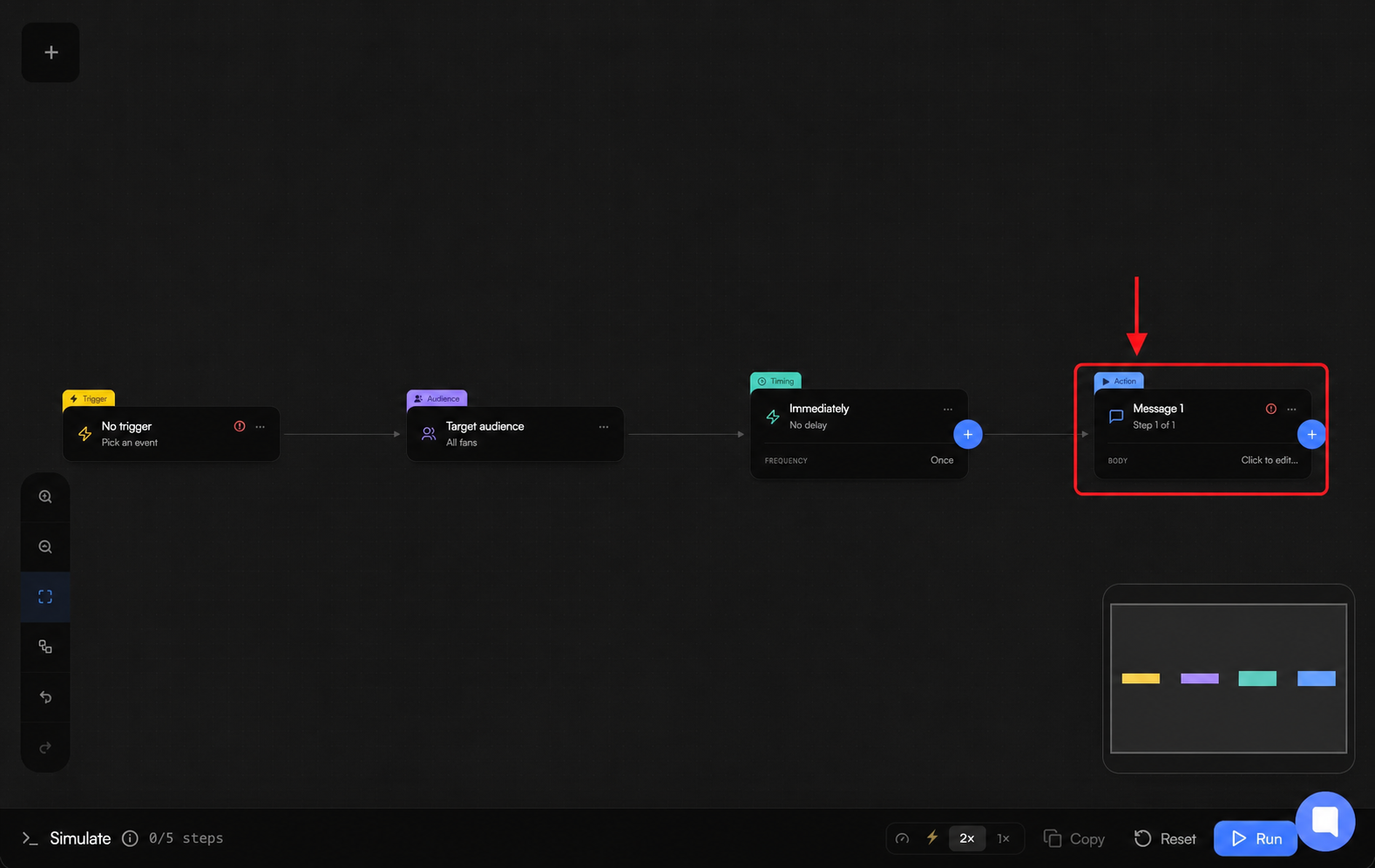
Choose Add Action, then choose Add Sequence. Add Action also offers Add Message.
Add the first message. You can use text, listed fan variables, media from the vault, and paid-message pricing where the selected platform supports them.
Add more message steps as needed. You can duplicate or remove a message, but the only message in a sequence cannot be removed.
For each message after the first, set Delay before sending from Instant to 1 hour in 30-second steps.
Turn on Stop sequence on reply when a fan reply should prevent pending sequence messages from continuing.
Choose Create New Automation for a new automation or Save Automation when editing.
Send only once permits one sequence.
Send every time the fan matches the trigger permits multiple sequences. For each fan, repeated runs cycle through the saved sequence order.
You can rename, move, or duplicate a sequence. You can delete a sequence when more than one exists.
Missing required fields appears: follow the on-screen hints and complete the missing message content before saving.
You cannot add another sequence: Send only once permits one sequence; use Send every time the fan matches the trigger when you need multiple sequences.
Creating or editing an automation requires automation-management access.
A trigger or action is unavailable: check its current plan and platform availability.