Use Fixed pricing when you want to choose the asking price yourself. Use Smart pricing when you want Substy's AI to choose the asking price while respecting the lowest price you set.
Go to CRM → Scripts.
Open the script you want to work on.
Open a template, or choose Add Template.
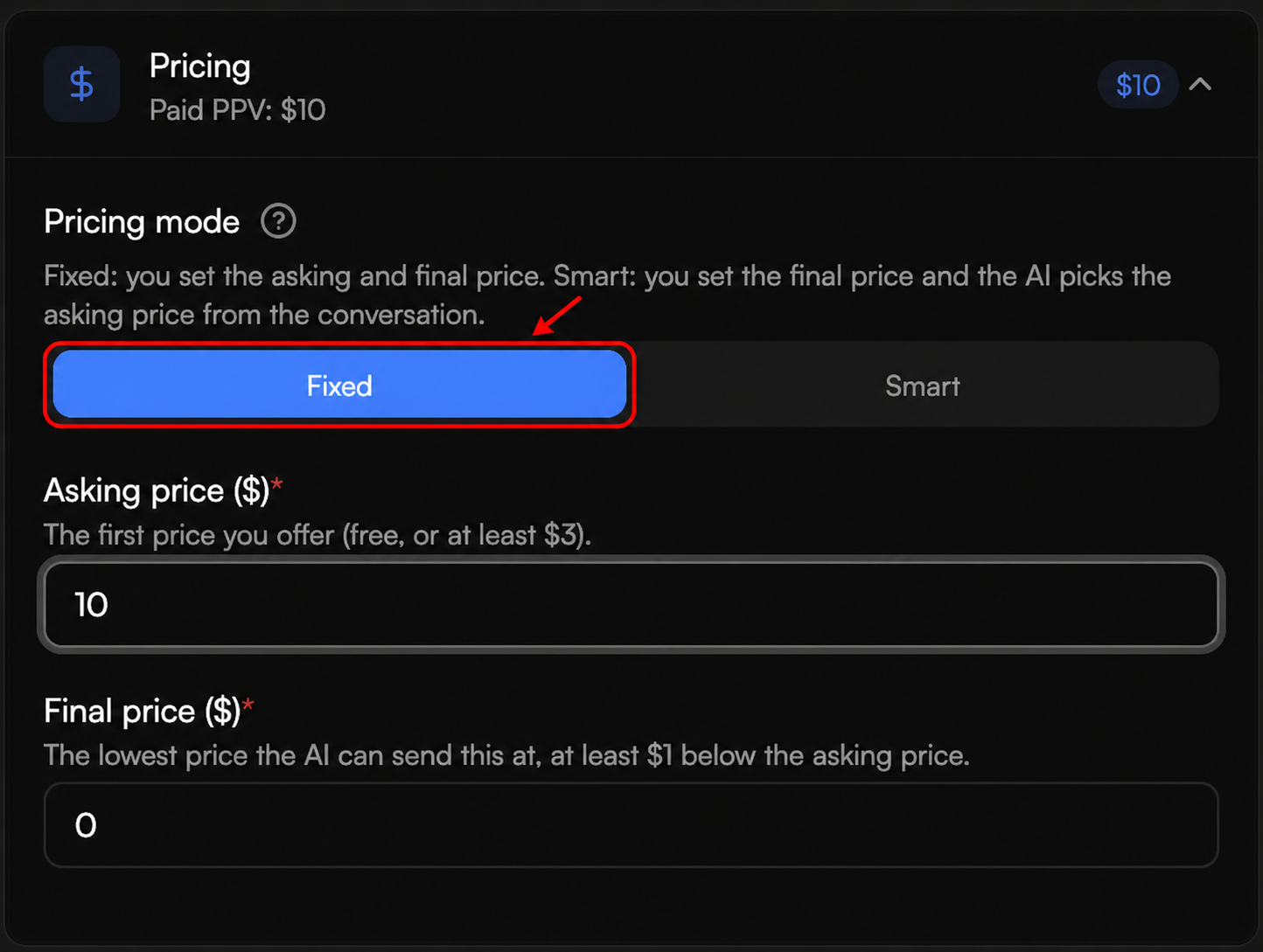
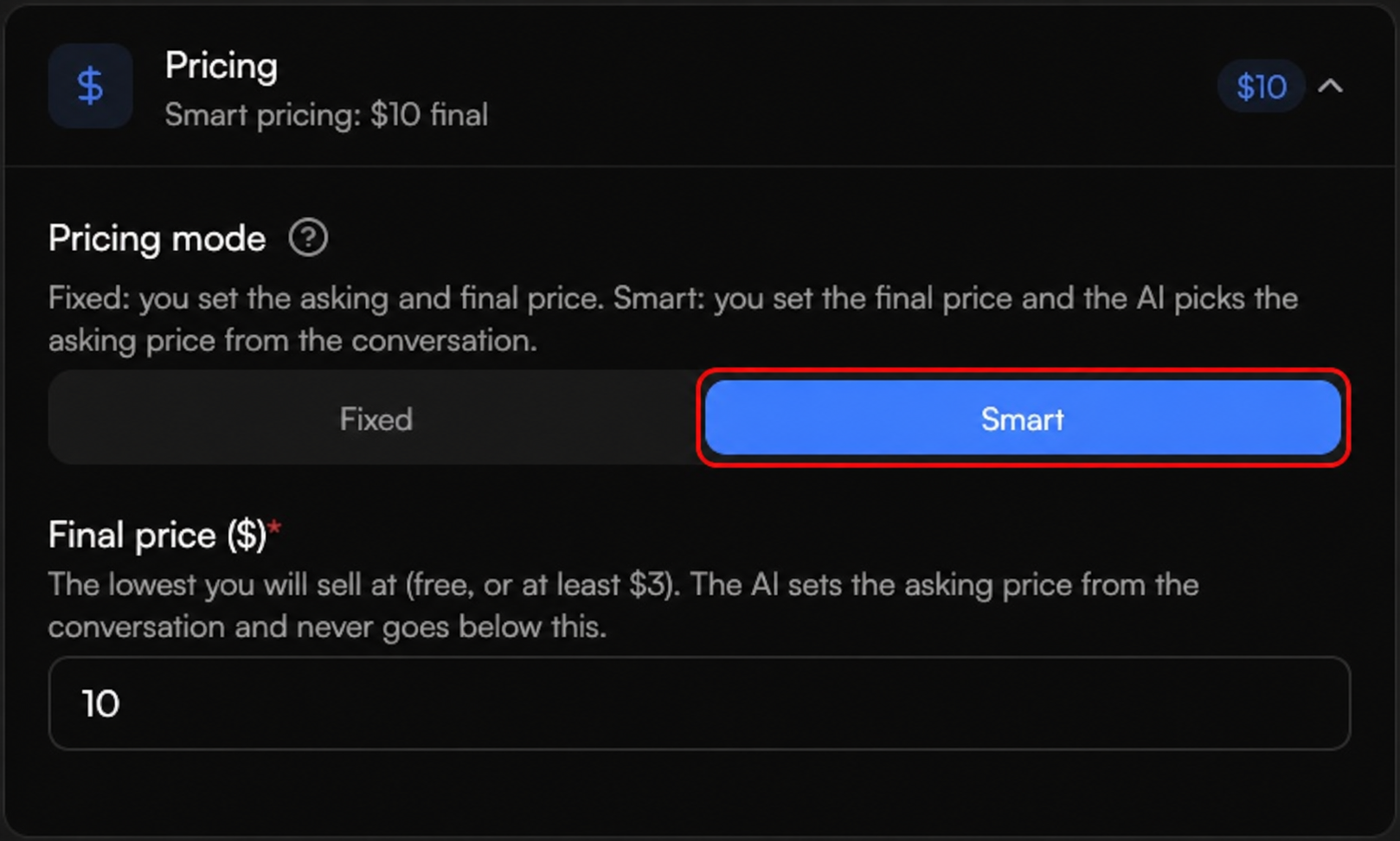
Expand Pricing, then choose Fixed or Smart under Pricing mode.
Fixed pricing gives you direct control over both prices:
Asking price is the first price offered for the template.
Final price is the lowest price the AI can send. For a paid template, it must be at least $1 below the Asking price.
After you enter a positive Asking price, the Final price field appears. Enter both prices, then finish the rest of the template before saving.
Smart pricing asks you for one value: the Final price. This is your price floor. The AI chooses the asking price from the conversation and never goes below the Final price you configured.
Choose Smart under Pricing mode.
Enter the lowest price you are willing to accept in Final price.
Finish the rest of the template and save it.
Apply the free-or-paid rule to the mode's primary price field:
Fixed: In Asking price, enter $0 for a free template or at least $3 for a paid template.
Smart: In Final price, enter $0 for a free template or at least $3 for a paid template.
Enter a positive Asking price. Substy then displays the Final price field.
Make sure the Final price is at least $1 below the Asking price. For example, an Asking price of $10 requires a Final price of $9 or less.
Changing pricing requires template-management access. If the controls are disabled, ask someone with template-management access to update the template.
This is expected. You set the Final price floor, and the AI chooses the asking price from the conversation.